 |
0.1.33
|
|
0.1.33
|
This section provides detailed API documentation for PyHelios core functionality.
There are several vector types commonly used by the Context and other plugins. These are Python classes with at least two member variables. Helios vector types are available by importing:
Note that vector types are also available when importing Context.
Available vector types are detailed below.
| Type | Description | Data Fields | Member Functions | Math Operators | Creation |
|---|---|---|---|---|---|
| vec2 | 2D vector of floats | x, y | normalize(), magnitude() | * (dot product), * (mult. by scalar), /, +, -, +=, ==, != | vec2(x, y) |
| vec3 | 3D vector of floats | x, y, z | normalize(), magnitude() | * (dot product), * (mult. by scalar), /, +, -, +=, ==, != | vec3(x, y, z) |
| vec4 | 4D vector of floats | x, y, z, w | none | * (dot product), * (mult. by scalar), /, +, -, +=, ==, != | vec4(x, y, z, w) |
| int2 | 2D vector of integers | x, y | none | +, -, +=, ==, != | int2(x, y) |
| int3 | 3D vector of integers | x, y, z | none | +, -, +=, ==, != | int3(x, y, z) |
| int4 | 4D vector of integers | x, y, z, w | none | +, -, +=, ==, != | int4(x, y, z, w) |
| SphericalCoord | Spherical coordinate | radius, elevation, zenith, azimuth | none | ==, != | SphericalCoord(radius, elevation, azimuth) |
| RGBcolor | red-green-blue color code (values normalized to 1) | r, g, b | scale() | ==, != | RGBcolor(r, g, b) |
| RGBAcolor | red-green-blue-alpha color code (values normalized to 1) | r, g, b, a | scale() | ==, != | RGBAcolor(r, g, b, a) |
| Time | Time of day | hour, minute, second | none | ==, != | Time(hour, minute, second) |
| Date | Calendar date (YYYY,MM,DD) | year, month, day | JulianDay(), incrementDay(), isLeapYear() | ==, != | Date(year, month, day) |
Vector types can be initialized directly. For example, i2 = int2(1, 2) creates an int2 with members i2.x = 1 and i2.y = 2.
PyHelios does not provide predefined named color constants; construct colors directly with RGBcolor(r, g, b) (values normalized to 1). The table below lists common colors and their RGB values for convenience:
| Color | RGB Values | RGBcolor(...) | Color Swatch |
|---|---|---|---|
| black | (0,0,0) | RGBcolor(0, 0, 0) | |
| white | (1,1,1) | RGBcolor(1, 1, 1) | |
| red | (1,0,0) | RGBcolor(1, 0, 0) | |
| blue | (0,0,1) | RGBcolor(0, 0, 1) | |
| green | (0,0.6,0) | RGBcolor(0, 0.6, 0) | |
| cyan | (0,1,1) | RGBcolor(0, 1, 1) | |
| magenta | (1,0,1) | RGBcolor(1, 0, 1) | |
| yellow | (1,1,0) | RGBcolor(1, 1, 0) | |
| orange | (1,0.5,0) | RGBcolor(1, 0.5, 0) | |
| violet | (0.5,0,0.5) | RGBcolor(0.5, 0, 0.5) | |
| lime | (0,1,0) | RGBcolor(0, 1, 0) | |
| silver | (0.75,0.75,0.75) | RGBcolor(0.75, 0.75, 0.75) | |
| gray | (0.5,0.5,0.5) | RGBcolor(0.5, 0.5, 0.5) | |
| navy | (0,0,0.5) | RGBcolor(0, 0, 0.5) | |
| brown | (0.55,0.27,0.075) | RGBcolor(0.55, 0.27, 0.075) | |
| khaki | (0.94,0.92,0.55) | RGBcolor(0.94, 0.92, 0.55) | |
| greenyellow | (0.678,1,0.184) | RGBcolor(0.678, 1, 0.184) | |
| forestgreen | (0.133,0.545,0.133) | RGBcolor(0.133, 0.545, 0.133) | |
| yellowgreen | (0.6,0.8,0.2) | RGBcolor(0.6, 0.8, 0.2) | |
| goldenrod | (0.855,0.647,0.126) | RGBcolor(0.855, 0.647, 0.126) |
Any color can be used with RGBAcolor to specify an alpha (transparency) value:
The Context is a Python class that manages data and functions associated with the Helios framework. The functions of the Context are:
In simplest terms, the Context stores information associated with geometric objects (primitives) and their corresponding data.
In order to use the Context, it must be imported:
The context is typically created within the main function or script:
The Context is usually passed to plugins, which gives them access to geometry and data.
The Context stores a geographic location used by plugins such as SolarPosition and RadiationModel for sun-position calculations. Location is represented by the immutable Location dataclass with four fields: latitude in degrees (+N / -S), longitude in degrees (+W / -E per Helios convention), utc_offset in hours (+ moving West), and altitude in meters above sea level (default 0.0). The non-standard +W longitude convention is automatically flipped to the standard +E convention when written into camera EXIF metadata.
Once the Context location is set, downstream plugins can read it instead of taking explicit lat/lon arguments.
Every field is validated when a Location is constructed and again by setLocation(). An out-of-range value raises ValueError and leaves the Context's location unchanged.
| Field | Range | Notes |
|---|---|---|
latitude | -90 to 90 | |
longitude | -180 to 180 | Helios counts longitude positive moving West |
utc_offset | -14 to 12 | Asymmetric — see below |
altitude | any finite value | No non-arbitrary bound exists for a simulated scene |
The utc_offset range is -14 to +12 rather than -12 to +12 because Helios counts the offset positive moving West: the real-world span of UTC-12 through UTC+14 (Kiribati keeps the latter) inverts to +12 through -14. So an offset of -14 is legal and +14 is not.
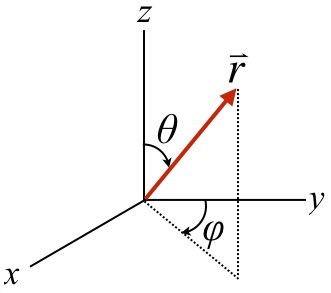
Helios uses a right-handed Cartesian coordinate system. (x,y,z) coordinates are typically specified using the 'vec3' data structure (see Vector Types).
Rotations are typically specified using spherical angles (see Vector Types). A rotation of the elevation angle θ rotates the object about its y-axis. A rotation of the azimuthal angle φ rotates the object clockwise about its z-axis.
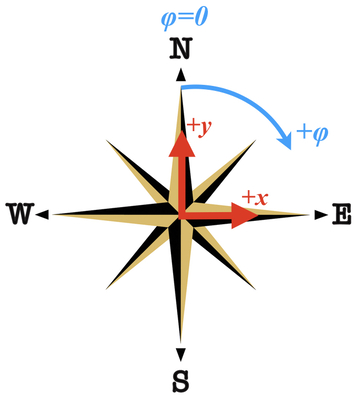
When compass directions are used, +y corresponds to North, and +x corresponds East. The azimuthal angle φ is measured clockwise from North.
The Helios framework is centered around geometric objects called 'primitives'. Primitive elements build up the geometry of the domain, and typically store the data that couples models. For example, each primitive may have an associated surface temperature value that is updated or used by several different models.
The available geometric primitive types are detailed below. Each primitive type has an enumeration that can be used in the code to reference each primitive type.
| Primitive | Description | Enumeration |
|---|---|---|
| Patch | Rectangular polygon with coplanar vertices. A patch is specified by the (x,y,z) coordinate of its center and by the lengths of its sides in the x- and y-directions. The default orientation of a patch is horizontal (i.e., it's normal is in the +z direction). | PRIMITIVE_TYPE_PATCH |
| Triangle | Triangular polygon specified by its three vertices. | PRIMITIVE_TYPE_TRIANGLE |
| Voxel | Parallelpiped or rectangular prism. A voxel is specified by the (x,y,z) coordinate of its center and by the lengths of its sides in the x-, y-, and z-directions. The default orientation of a voxel is axis-aligned. | PRIMITIVE_TYPE_VOXEL |
Primitives are referenced by their 'universal unique identifier' or UUID. When a function is called to add a primitive to the context, a UUID is returned that can be used later to reference the primitive. Objects can be formed simply by storing a group of UUIDs corresponding to the primitives that make up the object.
Each primitive type has a different function that is used to add it to the Context, which are detailed in the table below.
| Primitive | Adder function |
|---|---|
| Patch | |
| Triangle | |
| Voxel | Not implemented in PyHelios. Use addBox() for box geometry. |
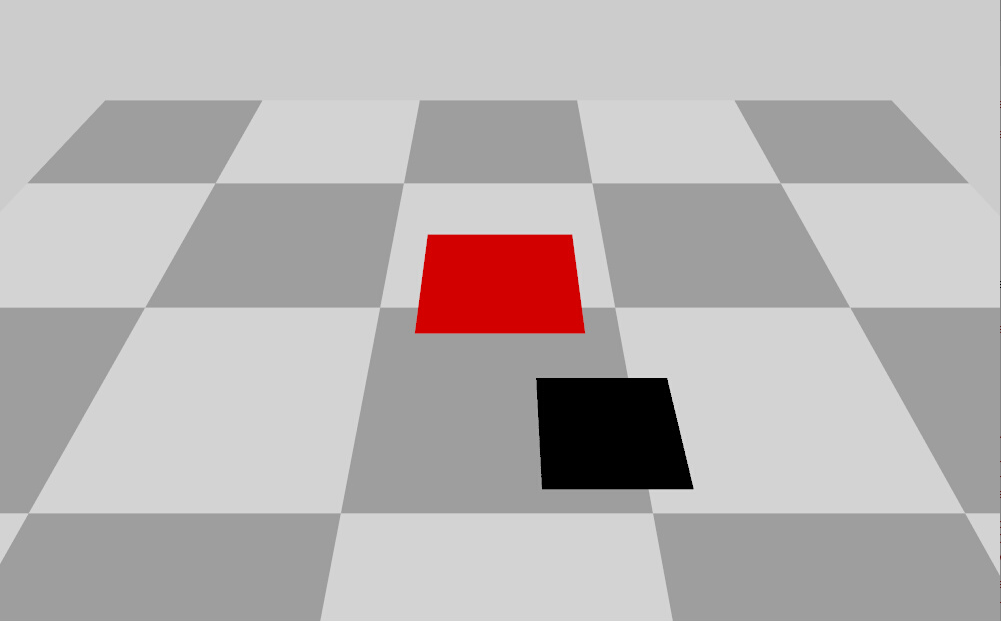
Patches are added by specifying the (x,y,z) coordinate of its center, the lengths of its sides in the x- and y-directions, and optionally its spherical rotation (see Coordinate System) and r-g-b color. The following is an example of using the addPatch() function to add a simple patch:
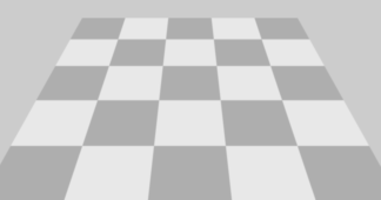
This will add the Patch shown below, with the default orientation of horizontal. (Note that the addition of the checkerboard ground and the 'Visualizer' plugin is needed to replicate this image, which is not shown in the example code.)
The patch can also be rotated by adding the optional SphericalCoord argument:
This will first rotate the patch by 0.25π rad about the x-axis such that its normal is pointing toward the +y direction, THEN it will apply a clockwise azimuthal rotation of 0.5π rad such that its normal is pointing in the +x direction (which will be its final orientation). Note that in order to have more control over rotations, it is recommended to use the rotatePrimitive() function (see "Primitive Transformations" section below).
Triangles are added by specifying the (x,y,z) coordinates of the triangle's three vertices, and optionally its r-g-b color. The following is an example of using the addTriangle() function to add a simple triangle:
This will add the Triangle shown below. (Note that the addition of the checkerboard ground and the 'Visualizer' plugin is needed to replicate this image, which is not shown in the example code.)
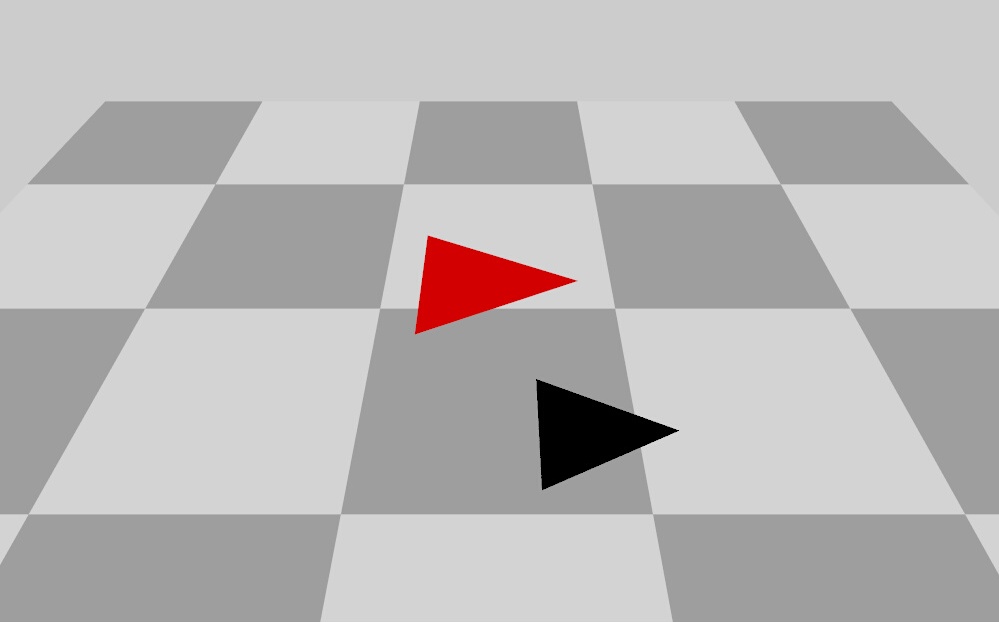
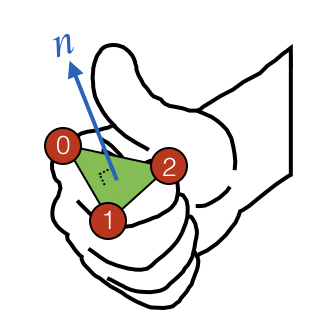
An important note for triangles is that the normal direction of the triangle follows the right-hand rule: use your right hand to connect each of the vertices in the order specified, and your thumb will point in the normal direction. This is illustrated in the figure below.
Note: The addVoxel() method is not yet implemented in PyHelios. Voxel geometry can be created by importing 3D models (PLY, OBJ formats) or using box compound geometry.
For box-shaped geometry, use:
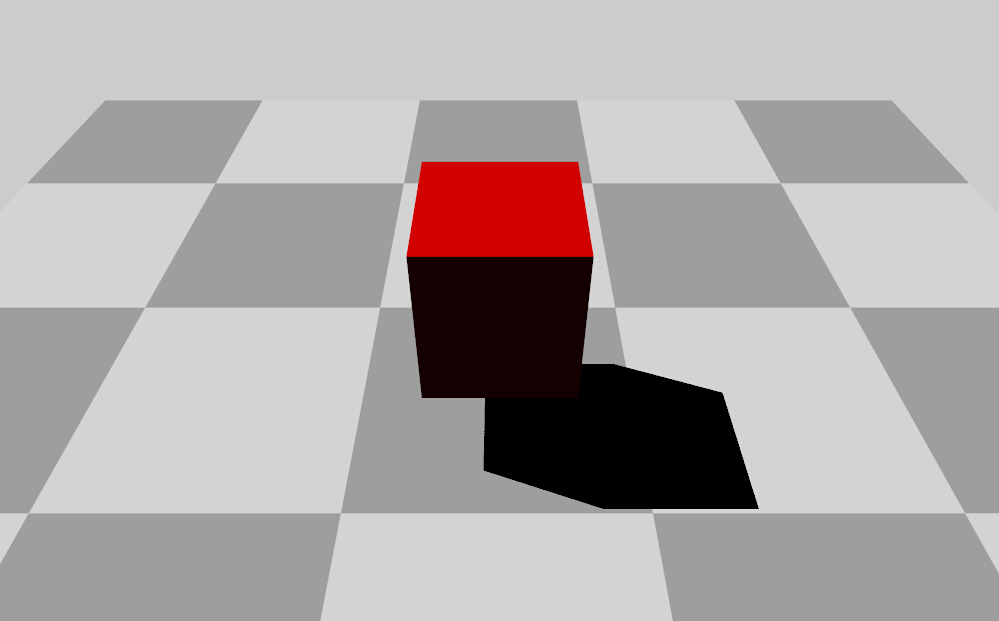
The voxel representation shown above is from the C++ Helios library. For PyHelios, use box geometry or import 3D models.
After primitives have been added to the Context, their position, size, and orientation can be further modified through transformations.
The scalePrimitive() function takes a vec3 that denotes a scaling factor to apply in each Cartesian direction (x,y,z). The translatePrimitive() function moves the primitive based on values provided by a vec3 that specifies the distance to translate in the x-, y-, and z-directions.
The rotatePrimitive() function rotates the primitive about an axis through an angle specified in radians. To rotate about one of the x-, y-, or z-axes, the function can be supplied a string of 'x', 'y', or 'z', respectively. The primitive can also be rotated about an arbitrary axis described by a unit vector argument. By default, the axis passes through the origin, but there is also an option to specify an arbitrary axis of rotation passing through an arbitrary origin point.
It is important to note that the order in which transformations are applied matters. Each transformation is applied based on the primitives current state. Rotating a primitive centered about the origin will cause the primitive to rotate about its own center. However, if a primitive is first translated then rotated, the primitive will be rotated about the origin (0,0,0), which does not necessarily coincide with the primitive's center if it has been translated.
The table below gives a list of primitive transformation functions, each of which take either a single UUID or a vector of UUIDs to apply the same transformation to multiple primitives.
Below is a code example of applying a transformation using a pointer to the primitive:
For applications that need direct access to a primitive's or compound object's full 4×4 affine transformation, PyHelios exposes the transformation matrix as a NumPy (4, 4) float32 ndarray in row-major order. Element T[i, j] is the entry at row i, column j; the translation column lives at indices T[0, 3], T[1, 3], T[2, 3].
Setters also accept a list of 16 floats or a nested 4×4 list when NumPy is not convenient.
All primitives have a common set of data that can be accessed by the same set of functions, such as the primitive surface area, the primitive vertices, etc.
The table below gives a list of all available primitive property setter and getter functions. In some case, there is no setter function when it is an intrinsic property of the primitive that is not changeable.
| Property | Setter Function | Getter Function |
|---|---|---|
| Primitive Type | N/A | getPrimitiveType(UUID) |
| Surface Area | N/A | getPrimitiveArea(UUID) |
| Normal Vector | N/A | getPrimitiveNormal(UUID) |
| Vertex Coordinates (x,y,z) | N/A | getPrimitiveVertices(UUID) |
Some primitives have special functions specific to that type of primitive. For example, one may want to query the length and width of a Patch. These primitive-specific functions are tabulated below. If the type of the primitive corresponding to the UUID passed to the function does not match the primitive type for that function, an error will be thrown (for example passing a Triangle UUID to the function getPatchSize()).
| Primitive Type/Property | Getter Function | |----------------------—|--------------—|
Images can be overlaid on patches and triangles through a process called texture mapping. There are typically two reasons for doing this. One is simply for visualization purposes, as it easily allows for complex coloring of a surface by coloring a surface according to an image. The other is to create a more complex shape by removing a portion of the primitive surface according to the transparency channel of an image. Each of these cases are described in detail below.
Patches: To color a Patch based on an image, simply pass the path to a PNG or JPEG image to the appropriate argument of the addPatch() command. Note that the path should either be absolute, or relative to the directory where the executable will be run (typically the ‘build’ directory).

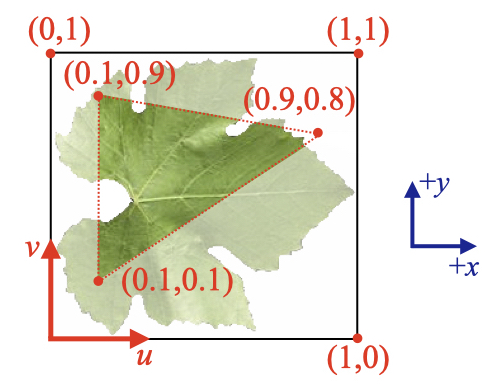
By default, the image is stretched to fill the entire surface of the patch. Alternatively, custom mapping coordinates can be supplied as illustrated below. Texture mapping coordinates are normalized to the dimensions of the image, such that the point (u,v)=(0,0) is in the lower left of the image, (u,v)=(1,1) is in the upper right of the image and so on.
Patches: For patches, the center and size of the box used to crop the texture are specified in (u,v) coordinates. In this example, the portion of the image inside of the red box would be mapped onto the patch, while the rest would be discarded.
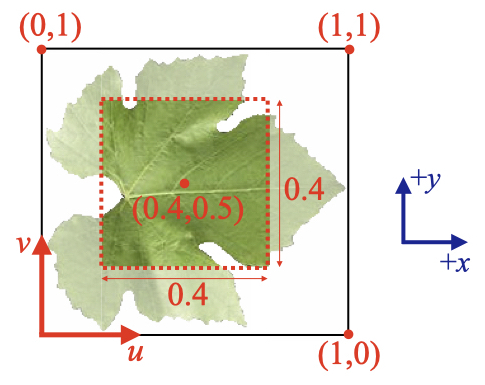
Triangles: For triangles, the (u,v) coordinates of the three triangle vertices are specified. For triangles, custom (u,v) coordinates must be specified when texture mapping.
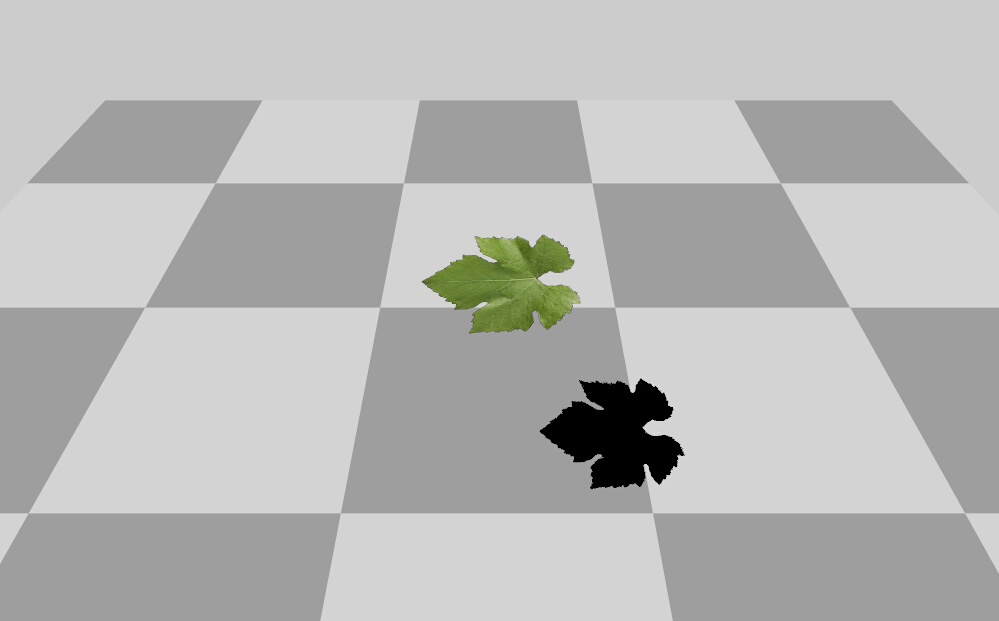
If the image provided for texture mapping has a transparency channel, the portion of the primitive that is transparent will automatically be removed, and the rest of the non-transparent portion of the primitive will be colored according to the image. Note that only PNG images are supported, since JPEG images do not have transparency. An example is given below.
A very important performance note when using texture-masked primitives with transparency: When a texture-masked primitive with transparency is added to the Context, the solid surface area of the primitive is calculated by determining which fraction of pixels are non-transparent. This is a computationally expensive process when the image is high resolution (e.g., millions of pixels).
If you are adding many identical primitives/objects with transparency, it is better to add it to the Context one time, then copy and translate it as many times as you need. An example of this is given in the code below.
| Property | Getter Function | |-------—|--------------—|
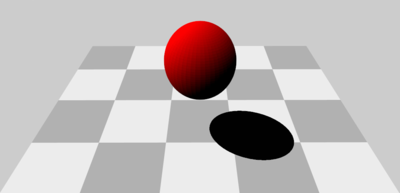
The Context has functions to rapidly generate various shapes, which consist of many primitives. These functions simply add the primitives needed to make the specified geometry, and return a vector of UUIDs corresponding to each of the primitives. The important distinction between these functions and those to add "Objects" (described below) is that Objects retain information about the overall 3D object such as the radius of the sphere.
Functions for adding compound geometry are listed below.
| Geometry | Description | Adder function(s) | Example |
|---|---|---|---|
| Tile | Patch subdivided into uniform grid of sub-patches. |
| |
| Sphere | Spherical object tessellated with Triangle primitives. |
| |
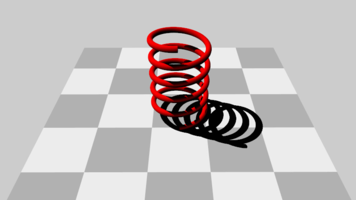
| Tube | Cylindrical tube object tessellated with Triangle primitives. Follows a specified path and can change radius along its length. |
| |
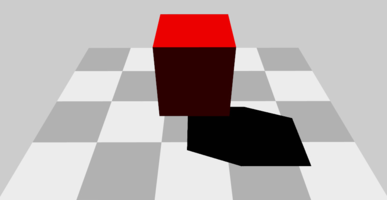
| Box | Rectangular prism object tessellated with Patch primitives. |
| |
| Disk | Ellipsoidal disk object tessellated with Triangle primitives. |
|
Objects are geometries consisting of many primitive elements. The critical difference between "Objects" and the compound objects described above is that Objects retain information about the overall geometry such as length, radius, etc., and have many sub-functions for manipulating them and assigning data. This is often useful when you want to know information about the overall object or want to manipulate the entire object in unison.
Functions for adding objects return a uint that serves as a unique identifier for the object, which can be used for later reference and manipulation. Functions for adding objects are listed in the table below.
| Object | Description | Adder function(s) | Example |
|---|---|---|---|
| Tile | Patch subdivided into uniform grid of sub-patches. |
| |
| Adaptive Tile | Patch subdivided by a quadtree into sub-patches that are fine near a target point and progressively coarser away from it. See Adaptive Tile Objects. | ||
| Sphere | Spherical object tessellated with Triangle primitives. |
| |
| Tube | Cylindrical tube object tessellated with Triangle primitives. Follows a specified path and can change radius along its length. |
| |
| Box | Rectangular prism object tessellated with Patch primitives. |
| |
| Disk | Ellipsoidal disk object tessellated with Triangle primitives. |
| |
| Cone | Tapered cylinder/cone object tessellated with triangles. |
|
Note: PyHelios uses a Context-centric design. Objects are manipulated through Context methods:
A ground plane is normally built as a tile object, which subdivides it into a uniform grid. That forces an awkward tradeoff whenever the scene contains an object of interest sitting on a large domain: resolving the shadows it casts requires centimeter-scale sub-patches, while the rest of the domain only needs to occlude the horizon. Running the fine resolution all the way out wastes millions of sub-patches, and nesting several tiles of differing resolution by hand is tedious.
An adaptive tile object solves this in a single object. Sub-patches are generated by recursive quadtree subdivision, so they are finest at a target point and grow progressively coarser with distance from it. The sub-patches exactly partition the tile, with no gaps and no overlaps.
The requested size range determines a grid of coarsest-level cells spanning the tile and the number of times such a cell may be subdivided. The achieved sizes are therefore close to, but not exactly equal to, those requested — typically within about 20% at each end. Query what was actually achieved with getAdaptiveTileObjectSubpatchSizeRange(), which returns a vec2 holding the achieved minimum in x and the achieved maximum in y.
transition_exponent controls how rapidly sub-patch size grows with distance from the target, and it is by far the most consequential parameter for the resulting sub-patch count:
| transition_exponent | Effect | Sub-patches on a 50 m tile refined from 2 m to 2 cm |
|---|---|---|
| 0.25 | Fine resolution concentrated tightly around the target | roughly 9 thousand |
| 0.35 (default) | Suits a typical ground plane | roughly 21 thousand |
| 0.5 | Fine resolution held further out from the target | roughly 61 thousand |
| 1 | Refinement level falls linearly with radius | roughly 471 thousand |
| 2 | Fine resolution spread broadly across the tile | roughly 2 million |
For reference, a uniform tile at the same 2 cm resolution across the whole 50 m domain would need 6.25 million sub-patches. Since the count varies by more than two orders of magnitude, check the cost before building any geometry:
A refinement that would generate more than 2,000,000 sub-patches is rejected with an error rather than exhausting memory, by both predictAdaptiveTileObjectSubpatchCount() and addAdaptiveTileObject().
Adaptive tiles are queried through the Context with a dedicated set of methods: getAdaptiveTileObjectCenter(), getAdaptiveTileObjectSize(), getAdaptiveTileObjectNormal(), getAdaptiveTileObjectVertices(), getAdaptiveTileObjectRefinement(), getAdaptiveTileObjectBaseSubdivisionCount(), getAdaptiveTileObjectMaxRefinementLevel(), getAdaptiveTileObjectSubpatchSizeRange() and getAdaptiveTileObjectTextureRepeat(). getObjectType() returns 7 for an adaptive tile.
getTileObjectAreaRatio() and setTileObjectSubdivisionCount() ignore adaptive tiles with a warning, so sweeping them over every object in a scene will not overwrite an adaptive layout with a uniform grid.getTileObjectTextureRepeat() (requested) and getTileObjectEffectiveTextureRepeat() (applied), while an adaptive tile has only the one.The overall extent of all primitives in the Context (or a filtered subset) can be queried with two helpers. getDomainBoundingBox() returns a tuple (xbounds, ybounds, zbounds) of three vec2 values where each vec2.x is the minimum and vec2.y is the maximum along that axis. getDomainBoundingSphere() returns (center, radius) as (vec3, float). Both methods accept an optional uuids argument to restrict the computation to a subset of primitives.
Data structures that are moved in and out of plugins are managed by the Context. There are three types of Context data structures that serve different purposes:
Implementation of data structure usage is detailed for each type of structure below.
PyHelios supports primitive, material, and global data of the following types: int, uint, float, double, vec2, vec3, vec4, int2, int3, int4, and str. Unlike the C++ API which uses type enumeration constants, PyHelios uses type-specific methods (e.g., setPrimitiveDataFloat(), setPrimitiveDataVec3()) for clearer, more Pythonic code.
Primitive data values can be scalar or a one-dimensional array of values.
For array/vector data, use the appropriate vector type. PyHelios provides type-specific methods for setting primitive data.
If primitive data is a scalar value, it can be retrieved for a given primitive via the Context using the getPrimitiveData(UUID, label) function:
In the above example, the value of 'emissivity' is 0.9.
It is often necessary to query information about primitive data. The following table lists functions used to query primitive data information.
| Function | Description |
|---|---|
| doesPrimitiveDataExist(UUID, label) | Check whether primitive data named 'label' exists for the primitive. |
| getPrimitiveDataType(UUID, label) | Get the HeliosDataType for the primitive. |
| getPrimitiveDataSize(UUID, label) | Get the length/size of the primitive data named 'label'. |
The one-sided area index \(L\) is the total one-sided area of a group of primitives divided by the ground area over which it is distributed – the quantity appearing in Beer's law, \(\exp(-GL/\cos\theta)\). calculateAreaIndex() computes it, optionally including woody elements to give a plant area index rather than a leaf area index.
| Call | Result |
|---|---|
calculateAreaIndex(leaf_uuids) | Leaf area index, ground area taken from the domain bounding box |
calculateAreaIndex(leaf_uuids, ground_area=A) | Leaf area index over an explicit ground area \(A\) (m2) |
calculateAreaIndex(leaf_uuids, wood_uuids) | Plant area index, ground area from the bounding box |
calculateAreaIndex(leaf_uuids, wood_uuids, ground_area=A) | Plant area index over an explicit ground area |
When ground_area is omitted, the basis is the horizontal (x-y) footprint of the bounding box of all primitives in the Context. A ground primitive extending beyond the canopy therefore enlarges the basis and lowers the reported index, so supply ground_area explicitly whenever the domain is not cropped tightly to the canopy. Ground primitives should not be listed in leaf_uuids; they are excluded from the numerator by omission.
Woody area is counted as one half of its summed one-sided area, because a tube or cone object encloses the branch and so sums to the full cylinder surface ( \(\approx 2\pi rL\)) rather than the projected area Beer's law requires. If woody elements are instead represented by non-enclosing planar primitives that are already one-sided silhouettes, this halving underestimates their contribution by a factor of two.
Primitives of type voxel are not permitted, because a voxel's area is its total enclosing surface area rather than a one-sided area.
Material data is similar to primitive data, but is attached to a named material rather than a UUID. A material is created with addMaterial(label) and can then be assigned to one or more primitives via assignMaterialToPrimitive(uuid, label). Setting a data value on the material is reflected for every primitive that references it, which is useful for storing shared physical properties (e.g., a leaf reflectivity that applies to every leaf).
PyHelios provides per-type setter and getter methods for all 11 supported types: setMaterialDataInt, setMaterialDataUInt, setMaterialDataFloat, setMaterialDataDouble, setMaterialDataString, setMaterialDataVec2, setMaterialDataVec3, setMaterialDataVec4, setMaterialDataInt2, setMaterialDataInt3, setMaterialDataInt4, and the matching getMaterialData<Type> accessors. There is also a unified setMaterialData(material_label, data_label, value) that detects the value's type at the call site, and a getMaterialData(material_label, data_label, dtype=None) that auto-detects the stored type via getMaterialDataType() when dtype is omitted.
For an entry whose type is unknown at runtime, getMaterialDataType(material_label, data_label) returns the HeliosDataType enum value (0=INT, 1=UINT, 2=FLOAT, 3=DOUBLE, 4=VEC2, 5=VEC3, 6=VEC4, 7=INT2, 8=INT3, 9=INT4, 10=STRING). Use doesMaterialDataExist() to check for presence and clearMaterialData() to remove an entry.
For data labels with bounded sets of values (e.g., a categorical "species" string or a small integer ID), PyHelios can pre-cache the unique values seen on primitives or compound objects. Caching must be enabled before the data is written:
The same pattern applies to objects via enableObjectDataValueCaching() and getUniqueObjectDataValues(label, dtype). Supported dtype values are int, str, and the string "uint".
Global data is similar to primitive data, except that it does not correspond to any particular primitive, rather it is a single instance of a certain data structure. The functions used to create global data within the Context are essentially the same as those used to create primitive data, except they do not take a primitive UUID as an argument (because they do not correspond to primitives).
Timeseries - or data points corresponding to discrete points in time - can be managed by the Context. This typically corresponds to weather data that is measured by a sensor. Timeseries data points are added to the Context by giving the value of the data point, along with Date and Time vectors. An example is given below to manually add 15-min timeseries data to the Context.
Data in the timeseries can be accessed either via the queryTimeseriesData() function by giving the index of the data point, or by giving a date and time. To loop through all data in the timeseries, we can query the length of the timeseries and make a for-loop.
Typically, data is not entered manually, but rather through an XML or text file (see Reading XML Files for information).
It is often necessary to get the number of data points in a given timeseries, which can be accomplished with the command:
An entire timeseries variable (with all of its time points) can be removed using deleteTimeseriesVariable(). If the variable does not exist a non-fatal warning is issued and the call is otherwise a no-op. To wipe every timeseries variable at once, use clearTimeseriesData() instead.
 1.13.2